Webserver Emulation
Goals
The goal of this showcase is to demonstrate the integration and operation of a real-world application within an OMNeT++/INET simulation environment. Specifically, it involves running a Python-based webserver and executing several wget commands from host operating system environments. These are interfaced with simulated network components, illustrating the capabilities of OMNeT++ in hybrid simulations that involve both emulated and simulated network elements.
4.6The Model
The showcase uses the following network:
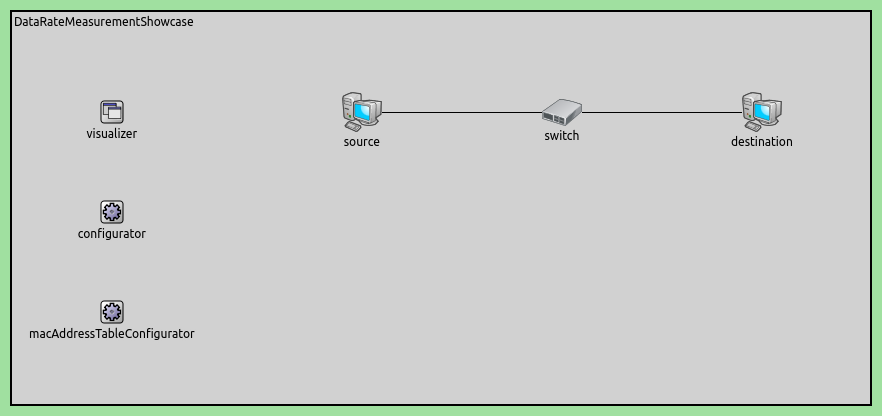
Here is the NED definition of the network:
network WebserverShowcase
{
    parameters:
        int numClients;
        @display("bgb=600,400");
    submodules:
        visualizer: <default(firstAvailableOrEmpty("IntegratedMultiCanvasVisualizer"))> like IIntegratedVisualizer if typename != "" {
            parameters:
                @display("p=100,100;is=s");
        }
        client[numClients]: StandardHost {
            parameters:
                @display("r=,,#707070;p=300,100,r,100");
        }
        switch: EthernetSwitch {
            parameters:
                @display("p=300,200");
        }
        server: StandardHost {
            parameters:
                @display("r=,,#707070;p=300,300");
        }
    connections:
        for i=0..numClients-1 {
            client[i].ethg++ <--> Eth1G <--> switch.ethg++;
        }
        server.ethg++ <--> Eth1G <--> switch.ethg++;
}
This network consists of a server connected to an Ethernet switch, along with a configurable number of clients also connected to the switch. The server will run a real Python webserver, and the clients will perform HTTP GET requests using wget.
Configuration
The behavior of the model is controlled by the following INI file configuration:
[General]
network = WebserverShowcase
scheduler-class = "inet::RealTimeScheduler"
sim-time-limit = 10s

# set number of clients
*.numClients = 3

# unshare user and network namespaces
unshare-namespaces = true

# disable loopback interfaces
*.*.numLoInterfaces = 0

# turn off unused protocols
*.*.hasTcp = false
*.*.hasUdp = false
*.*.hasIpv4 = false
*.*.hasIpv6 = false

# disable ethernet protocols
*.client[*].ethernet.typename = ""
*.server.ethernet.typename = ""

# configure network interfaces
*.*.eth[0].bitrate = 1Gbps
*.*.eth[0].mac.duplexMode = true
*.*.eth[0].mac.fcsMode = "computed"

# configure server network interface
*.server.eth[0].typename = "ExtUpperEthernetInterface"
*.server.eth[0].copyConfiguration = "copyFromExt"
*.server.eth[0].device = "tap0"
*.server.eth[0].namespace = "server"

# configure client network interfaces
*.client[*].eth[0].typename = "ExtUpperEthernetInterface"
*.client[*].eth[0].copyConfiguration = "copyFromExt"
*.client[*].eth[0].device = "tap0"
*.client[*].eth[0].namespace = nodeFullName()

# configure server external environment
*.server.hasEnvironment = true
*.server.environment.namespace = "server"
*.server.environment.setupCommand = "ip tuntap add mode tap dev tap0 && " +
                                    "ip link set lo up && " +
                                    "ip link set dev tap0 up && " +
                                    "ip addr add 192.168.0.1/24 dev tap0"
*.server.environment.teardownCommand = "ip link set dev tap0 down && " +
                                       "ip tuntap del mode tap dev tap0 ; " +
                                       "rm -f WebserverShowcase.ned.*"

# configure client external environment
*.client[*].hasEnvironment = true
*.client[*].environment.namespace = nodeFullName()
*.client[*].environment.setupCommand = "ip tuntap add mode tap dev tap0 && " +
                                       "ip link set lo up && " +
                                       "ip link set dev tap0 up && " +
                                       "ip addr add 192.168.0.1" + string(nodeIndex()) + "/24 dev tap0"
*.client[*].environment.teardownCommand = "ip link set dev tap0 down && " +
                                          "ip tuntap del mode tap dev tap0"

# configure webserver application
*.server.numApps = 1
*.server.app[0].typename = "ExternalApp"
*.server.app[0].process.namespace = "server"
*.server.app[0].process.command = "python3 -m http.server 8080"

# configure wget application
*.client[*].numApps = 1
*.client[*].app[0].typename = "ExternalApp"
*.client[*].app[0].process.namespace = nodeFullName()
*.client[*].app[0].process.command = "wget -o /dev/stdout http://192.168.0.1:8080/WebserverShowcase.ned"
*.client[*].app[0].process.startTime = 0.5s
*.client[*].app[0].process.onExit = "relaunch"
*.client[*].app[0].process.relaunchDelay = 0.1s
*.client[*].app[0].process.printStdout = true
This configuration sets up the real-time scheduler to synchronize the simulation time with the wall clock time, allowing interaction between the simulated model and real applications. It also specifies the number of clients in the simulation and various other network settings.
Results
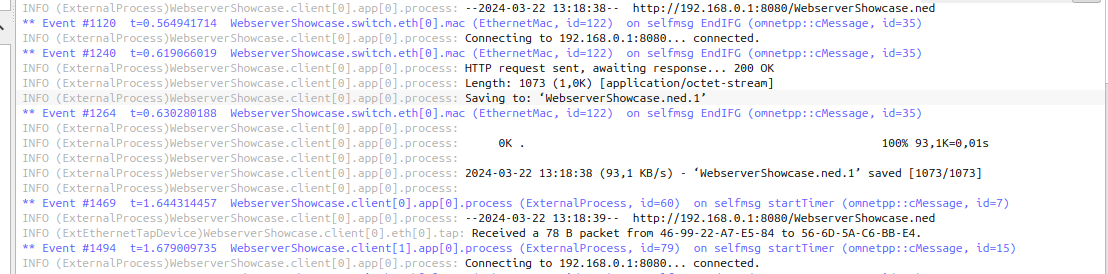
Upon running the simulation, the webserver on the host OS will respond to HTTP GET requests initiated by the wget commands from the simulated clients. The interaction can be observed in the simulation’s event log, and network performance metrics such as response time and throughput can be analyzed based on the simulation results.
The following terminal screenshot shows the running webserver and wget processes:

The output of the processes appears in the Qtenv log window. Here is the output of one of the wget commands:
Sources: omnetpp.ini,
WebserverShowcase.ned
Try It Yourself
If you already have INET and OMNeT++ installed, start the IDE by typing
omnetpp, import the INET project into the IDE, then navigate to the
inet/showcases/emulation/webserver folder in the Project Explorer. There, you can view
and edit the showcase files, run simulations, and analyze results.
Otherwise, there is an easy way to install INET and OMNeT++ using opp_env, and run the simulation interactively.
Ensure that opp_env is installed on your system, then execute:
$ opp_env install --init -w inet-workspace inet-4.6 --build-modes=release --options=inet:full
$ cd inet-workspace
$ sudo setcap cap_sys_admin+ep omnetpp-*/bin/opp_run_release
$ opp_env shell --options=inet:full
This command creates an inet-workspace directory, installs the appropriate
versions of INET and OMNeT++ within it, and opens an interactive shell. (The
--options=inet:full argument is required to enable the Emulation feature in
opp_env.)
Inside the shell, start the IDE by typing omnetpp, import the INET project,
then start exploring.
To experiment with the emulation examples, navigate to the
inet/showcases/emulation/webserver directory. From there, you can execute the
commands outlined in the previous sections.
Discussion
Use this page in the GitHub issue tracker for commenting on this showcase.